
Live Photo to GIF
Convert a Live Photo to GIF in seconds. It's free, it runs in your browser, and your video never leaves your device.
GIFs can be up to 5 seconds long.
On iPhone? Save the Live Photo as a video first, or only the still image comes through. Here's how
{"unsupported":"That file type isn't supported. Use a video (MOV, MP4) or photos (JPG, PNG, WebP).","mixed":"Pick one video or a few photos, not both. We used the video.","multi-video":"One video at a time, please. We used the first one.","too-many":"That's a lot of photos! We kept the first 20.","too-big":"That video is over 200 MB. Trim it in Photos first, then try again.","decode-video":"This browser can't read that video. iPhone videos are often HEVC: try Safari, or Chrome on a recent computer.","decode-image":"We couldn't open one of those photos. Try a JPG or PNG.","heic":"This browser can't open HEIC photos. Try Safari, or export them as JPEG first.","timeout":"That took too long to read. Try a shorter video.","still":"That's a still photo. On iPhone, Safari only passes on the still image of a Live Photo. Save it as a video first, then drop the video here.","encode":"Something went wrong making the GIF. Try a smaller size."}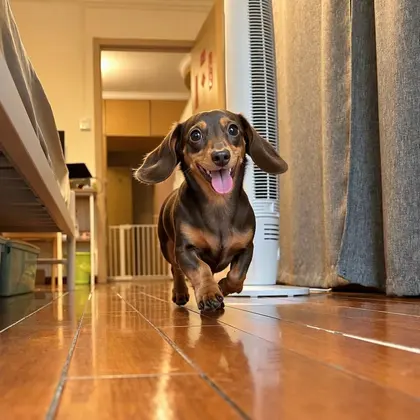
I bring tiny paws and one big blep!
SampleWant it straight from your Photos?
The BlepCam app reads Live Photos on your iPhone, keeps the 3 seconds before you tap, and writes the line your pet would say.
You're on the list.
We'll email you once when BlepCam is on the App Store.
How to make a GIF from a Live Photo
- 1
Save it as a video
In Photos, open the Live Photo, tap the More button (…) and choose Save as Video. Step by step
- 2
Drop the video here
Choose the new video, or drag it onto the box above. It stays on your device.
- 3
Trim, caption, download
Pick the loop, add a line if you like, then download your GIF.
Save a Live Photo as a video first
A Live Photo is really two files: a still photo and about three seconds of video. To turn it into a GIF in a browser, you need the video part. Here's how to save it.
On iPhone or iPad
- Open the Photos app and tap the Live Photo. You'll see LIVE in the top corner.
- Tap the More button (…), or the share button on older versions of iOS.
- Choose Save as Video. A new video appears next to the photo in your library.
- Come back to this page, tap Choose a video and pick the new video.
On a Mac
- In Photos, select the Live Photo.
- Choose File › Export › Export Unmodified Original. You'll get a photo and a .MOV video.
- Drag the .MOV file onto the box above.
Don't see Save as Video? Make sure Live is turned on for that photo: open it, tap Edit, then the Live Photo button, and check that LIVE isn't crossed out.
Convert a Live Photo to GIF on iPhone
Safari on iPhone hands websites only the still image of a Live Photo, not the moving part. Saving it as a video first brings the whole moment through, so the GIF moves the way you remember it. Everything else works right here in Safari: no app to install, no account.
Already have a few still photos instead? Stack them into a loop with Photo to GIF.
Your files stay on your device
Everything runs in your browser. Nothing is uploaded to our servers.
The BlepCam app
What a browser can't do
- Catches the 3 seconds before you tap
- Writes the line your pet would say
- Turns any shot into a WhatsApp sticker

Questions
Is it really free?
Yes. Make as many GIFs as you like. Each one carries a small BlepCam mark.
Do you upload my video?
No. The GIF is made in your browser, on your device. Your video never reaches our servers.
Why save it as a video first?
On iPhone, websites only receive the still image of a Live Photo. The saved video carries the motion.
How long can the GIF be?
Up to 5 seconds, which is longer than a Live Photo. For a longer video, pick the part you want with the Start and End sliders.